Embellish your reading experience with PDF Expert for Mac by learning how to customize the app to your preferences. Whether you want to change the layout, adjust the brightness, or enhance accessibility features, this guide will provide you with all the tips and tricks you need to make the most out of your reading experience. From night mode for eye strain to setting up shortcuts for quicker navigation, this post covers everything you need to know to personalize your PDF Expert experience. Get ready to take your digital reading to the next level!
Key Takeaways:
- Customize Your Reading Experience: PDF Expert for Mac offers a range of customization options to enhance your reading experience, such as text size and style adjustments, night mode, and page layout options.
- Efficient Navigation: Utilize the navigation tools in PDF Expert for Mac to easily move through documents, including bookmarks, thumbnails, and search features to quickly locate specific sections.
- Annotation and Collaboration: Take advantage of PDF Expert for Mac’s annotation tools to mark up documents, and utilize the collaboration features to share and edit documents with others.
Getting Started with PDF Expert
Obviously, the first step in customizing your reading experience with PDF Expert is getting to know the basics of the app. In this chapter, we will walk you through the essential steps to get started and familiarize yourself with the features of this powerful tool for Mac.
How-to Download and Install PDF Expert
When it comes to downloading and installing PDF Expert on your Mac, the process is simple and straightforward. You can either purchase the app from the Mac App Store or download it directly from the Readdle website. Once you have acquired the app, simply follow the installation instructions provided and within minutes, you’ll have PDF Expert up and running on your Mac, ready to enhance your reading experience.
How-to Open and Import Documents
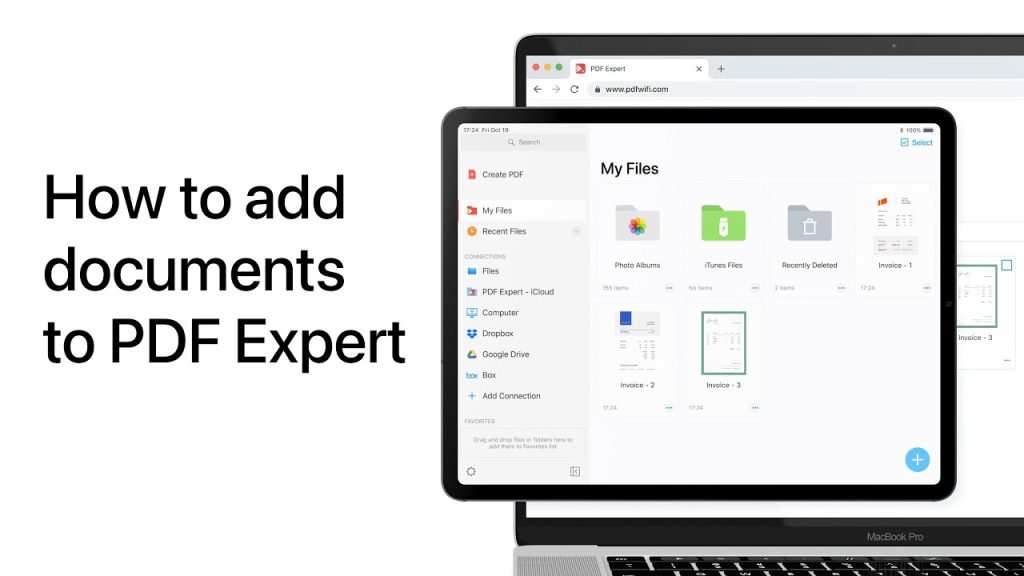
Opening and importing documents into PDF Expert is a breeze. When you launch the app, you’ll have the option to either open an existing document from your Mac’s storage or import documents from other sources such as cloud storage services or email attachments. With just a few clicks, you can have all your essential reading materials at your fingertips, ready for you to start customizing your reading experience with PDF Expert.
Customizing the Reading Interface
Even though PDF Expert for Mac comes with a well-designed default reading interface, you can customize it to better suit your preferences and reading habits. This will enhance your reading experience and make working with PDFs more efficient.
How-to Adjust View Modes and Layouts
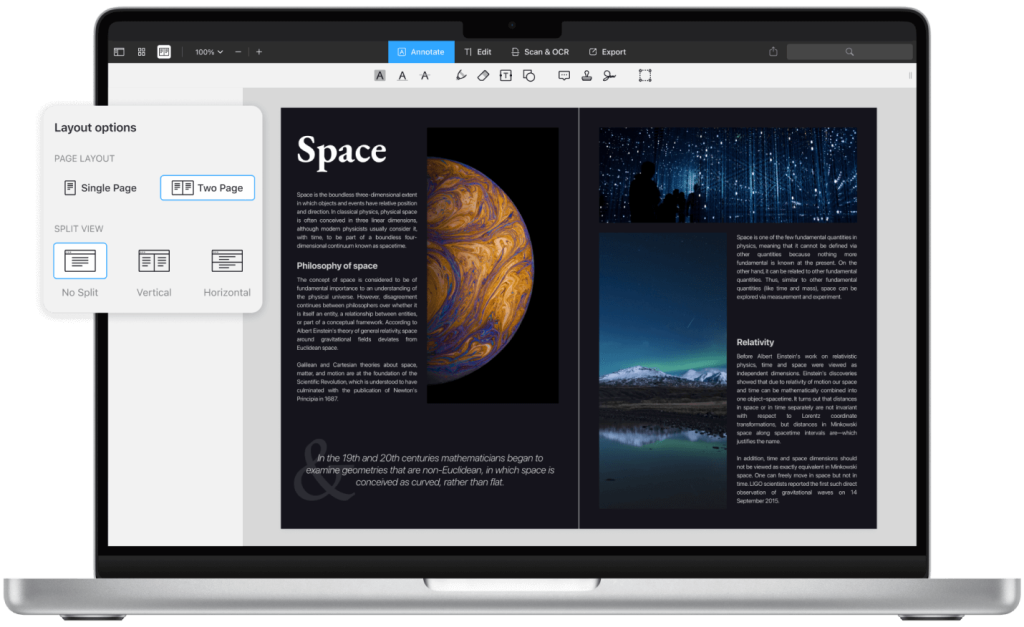
To adjust the view modes and layouts in PDF Expert for Mac, simply click on the View menu at the top of the screen. From there, you can choose from options such as Single Page, Continuous Scroll, or Two Page View. You can also adjust the zoom level and layout to fit your preferences. Experiment with different settings to find the one that works best for you.

Tips for Using the Navigation Tools
When navigating through a PDF in PDF Expert for Mac, you can use the Navigation Pane to easily jump to different sections of the document. You can also use the Table of Contents feature to quickly access specific parts of the PDF. Additionally, utilizing the Search function can help you quickly find specific words or phrases within the document.
- Tip 1: Use the Navigation Pane to jump to different sections of the PDF.
- Tip 2: Take advantage of the Table of Contents feature for quick access to specific parts of the document.
- Tip 3: Utilize the Search function to quickly find specific words or phrases within the PDF.
This will help you navigate through even the longest and most complex PDFs with ease.
Enhancing Your Reading Experience
After customizing your reading experience with PDF Expert for Mac, you can further enhance it by utilizing advanced features. To get the most out of the application, consider implementing the 7 Tips To Get the Most Out Of PDF Expert for Mac.
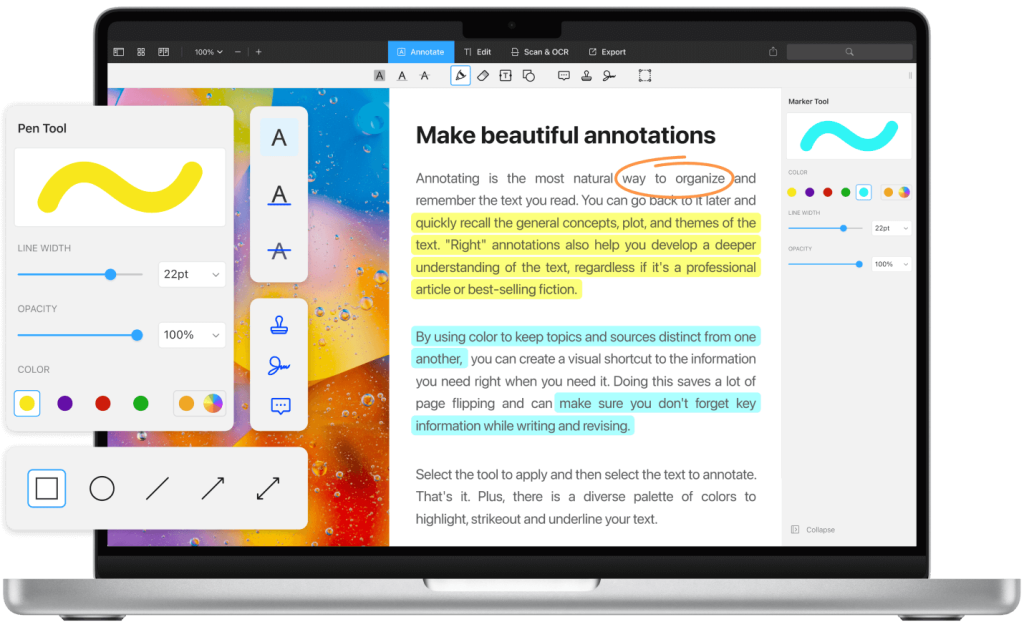
How-to Annotate and Take Notes Effectively
When reading and annotating documents, use highlighters and sticky notes to mark important information and jot down your thoughts. Utilize the annotation toolbar to access various markup tools for effective note-taking.

Tips for Managing and Organizing PDF Files
To efficiently manage and organize your PDF files, make use of customizable folders and color-coded tags to categorize and sort documents. Another useful feature is the ability to combine, split, and reorganize PDF pages. Knowing how to effectively manage your files will save you time and keep you organized.
- Customizable folders and tags
- Combine, split, and reorganize pages
Factors Influencing Reading Comfort
When seeking optimum reading comfort, consider factors such as adjustable screen brightness and background color, customizable page layout and font style, and night reading mode. This will ensure that you can read for extended periods without straining your eyes. This way, you can tailor the reading experience to your preferences and needs.
- Adjustable screen brightness and background color
- Customizable page layout and font style
- Night reading mode
Advanced Features and Tips
Keep on exploring PDF Expert for Mac with these advanced features and tips to customize your reading experience:
- Create custom keyboard shortcuts for your most frequently used tools and actions.
- Utilize the annotation summary tool to easily navigate through your notes and comments, allowing you to efficiently review and edit your work.
- Customize your toolbar by adding or removing specific tools and adjusting their order for easier access to your most-used features.
- For in-depth guidance and advanced features, download the official PDF Expert guide.
How to Use the Search and Indexing Tools
When you need to quickly locate a specific term or topic within a large document, PDF Expert’s powerful search and indexing tools can save you valuable time. With a simple keystroke, you can activate the search function and input your desired keywords to find exactly what you’re looking for in seconds.
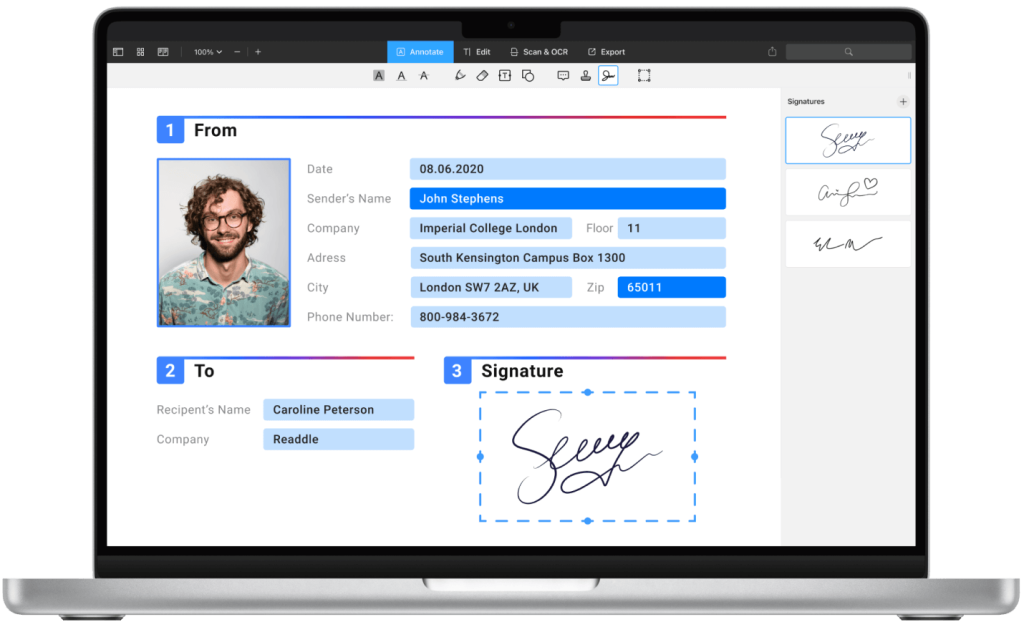
How to Fill out Forms and Sign Documents
PDF Expert offers robust tools for filling out forms and signing documents directly within the application. Whether you need to complete an important contract, add your signature to a legal document, or fill out a PDF form, PDF Expert provides a seamless, intuitive process for accomplishing these tasks with ease.
FAQ
Q: How can I customize my reading experience in PDF Expert for Mac?
A: In PDF Expert for Mac, you can customize your reading experience by adjusting the view mode, configuring toolbars, and using annotation tools to make your reading and editing experience seamless and personalized.
Q: What are some tips for customizing toolbars in PDF Expert for Mac?
A: You can customize toolbars in PDF Expert for Mac by adding or removing tools to fit your specific needs. Simply go to the ‘View’ menu and select ‘Customize Toolbar’ to drag and drop tools onto the toolbar for easy access.
Q: Are there any tricks for using annotation tools effectively in PDF Expert for Mac?
A: Yes, you can use annotation tools effectively in PDF Expert for Mac by utilizing features such as customizable presets, color coding, and the ability to create custom stamps. These features allow you to streamline your workflow and enhance your reading and editing experience.