2027 Microsoft Outlook Time Blocking Quick-Start
- Keep every block on your primary Exchange calendar: Use 5 color-coded Outlook Categories instead of separate sub-calendars so colleagues checking the Outlook Scheduling Assistant actually see your Deep Work slots as Busy.
- Bridge Microsoft To Do & OneNote to your calendar: Open the right-side My Day pane in New Outlook or Outlook on the Web and drag your top 1–2 daily deliverables straight onto protected morning blocks.
- Automate Microsoft Teams Do Not Disturb: Schedule recurring Focus Time via Microsoft Viva Insights so Teams flips your presence to Focusing automatically when a deep-work block starts.
- Funnel meetings with Bookings With Me: Restrict external and internal ad-hoc invites to an afternoon meeting window while reserving a 30–60 minute daily Open-Hour Buffer for overflow.
Download our 10 free printable time blocking templates, compare the best 2027 time blocking apps, or explore the Better Work hub.
If your company runs on Microsoft 365, Outlook, and Microsoft Teams, you have probably noticed that generic time-blocking advice breaks down fast on an enterprise Exchange server. In a corporate Microsoft environment, your calendar is not a private scratchpad—it is a shared scheduling grid where managers, clients, and project leads look for any white space inside the Scheduling Assistant and drop a 30-minute invite right into your best cognitive hours.
When you leave your primary Outlook calendar blank between meetings, a five-hour workday splinters into twelve 20-minute fragments. You spend the whole afternoon answering Teams pings and clearing email threads, only to reach 5:00 PM wondering why the single deliverable that actually moves your quarter forward never got touched.
This 2027 Microsoft Outlook time-blocking playbook walks through the exact system that works inside real M365 organizations: how to structure Exchange Categories without breaking Free/Busy visibility, how to connect Microsoft To Do and OneNote to your Work Week view, how to silence Teams with Viva Insights Focus Time, how to defend blocks when stakeholders try to double-book over them, and three worked role-based schedules you can adopt today.
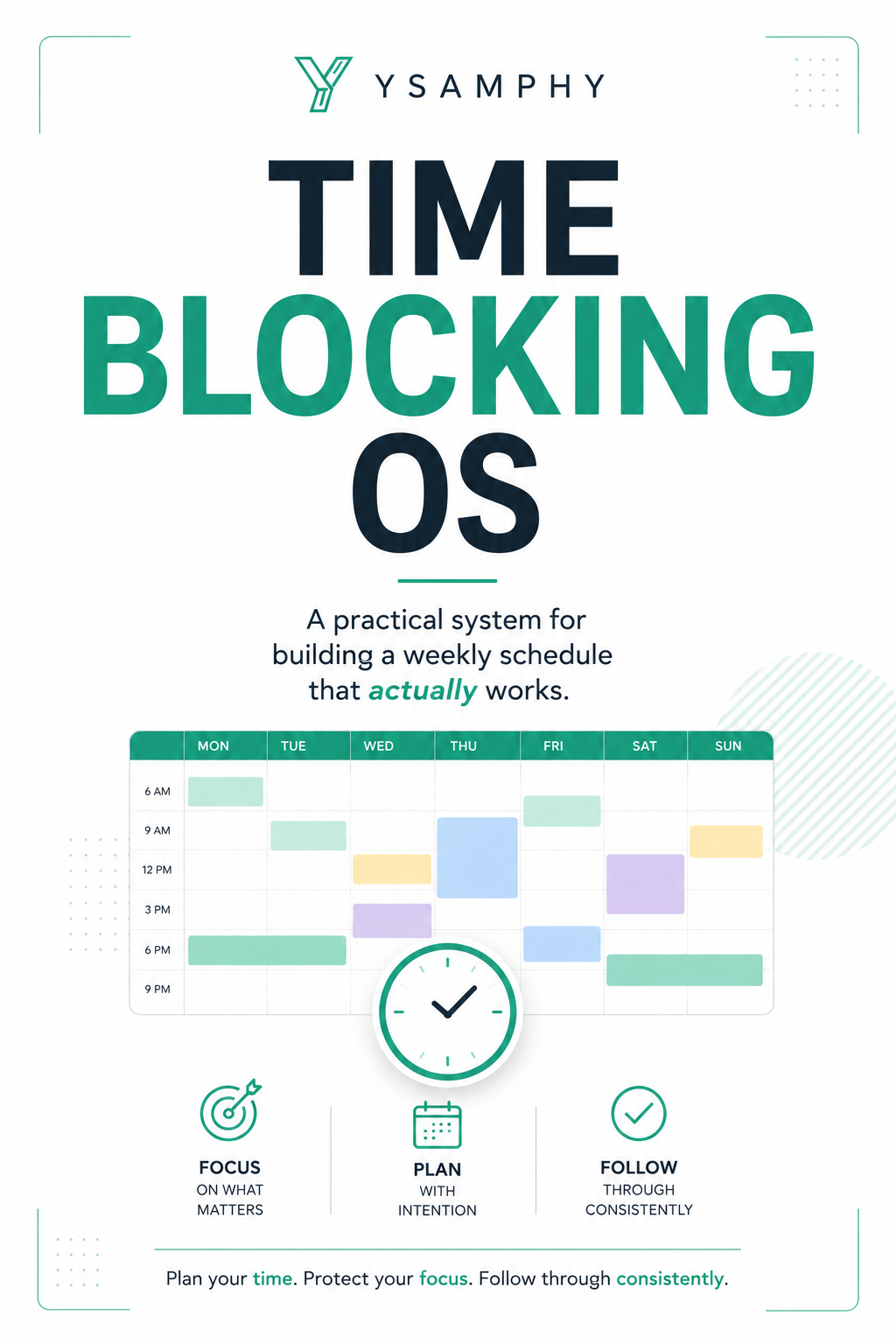
Visual Blueprint: What a Balanced Outlook Time-Blocked Week Looks Like
Notice two deliberate design choices in the weekly Exchange layout below: first, every morning opens with a protected Deep Work (Viva Focus) block before the inbox is even opened; second, every afternoon includes a designated Open-Hour Buffer (marked Tentative or Free) so unexpected escalations absorb into a planned container rather than blowing up the rest of the week.
2027 Outlook & Microsoft 365 Day-Block Builder
Select your role, workday start, and Teams meeting load to generate a color-coded Exchange calendar blueprint with Free/Busy rules.
Step 1: Set Up 5 Color-Coded Outlook Categories (Not Separate Sub-Calendars)
One of the most common mistakes people make when migrating from Google Calendar to Microsoft 365 is creating separate secondary calendars (such as a separate “Deep Work” calendar or “Personal Tasks” calendar). In Microsoft Exchange, secondary calendars do not show up as Busy in your organization’s Scheduling Assistant. If you put a 2-hour writing block on a secondary calendar, your coworkers still see wide-open white space and book meetings right on top of you.
Instead, keep every commitment on your primary Exchange calendar and use Outlook Categories for visual scanning, paired with deliberate Show As availability flags:
| Outlook Category | Recommended Color | Show As (Free/Busy) | Privacy & What Belongs Here |
|---|---|---|---|
| 1. Deep Work (Focus) | Dark Green | Busy (or Viva Focus) | Mark Private if working on sensitive HR/legal drafts; 90–120 min blocks for strategy, writing, coding, or major client deliverables. |
| 2. Admin & Inbox Batch | Teal / Sage | Busy | Two fixed 30-minute daily windows (e.g., 11:00 AM and 4:15 PM) to clear Outlook email, Teams chats, expense approvals, and small follow-ups. |
| 3. Meetings & Collaboration | Blue | Busy | 1:1s, team standups, client calls, and external Bookings with me slots grouped into designated collaboration windows. |
| 4. Open-Hour Buffer | Yellow / Amber | Free or Tentative | 30–60 min daily shock-absorber block for overflow tasks, ad-hoc teammate questions, and urgent escalations. |
| 5. Shutdown & Planning | Gray / Charcoal | Busy | 15-minute end-of-day wrap-up (plus Friday’s 30-minute Weekly Review) to verify tomorrow’s blocks and close open loops. |
How to configure Categories in 60 seconds: In New Outlook or Outlook on the Web, click the gear icon (Settings → Account → Categories), delete the generic default names (“Blue category”, “Green category”), and create the 5 categories above. In Classic Outlook Desktop, click Categorize → All Categories on the Home ribbon and assign matching colors (you can also bind shortcut keys like Ctrl+F2 for Deep Work and Ctrl+F3 for Admin Batch).
Step 2: New Outlook vs. Classic Outlook vs. Mac & Web — Key Feature Differences
Microsoft currently supports multiple Outlook clients across enterprise devices, and a few time-blocking controls sit in different menus depending on which version your IT department rolled out:
| Time-Blocking Feature | New Outlook (Windows) & Web | Classic Outlook (Desktop) | Outlook for Mac |
|---|---|---|---|
| Drag Tasks onto Calendar | Click the top-right My Day checkmark icon, open To Do, and drag tasks straight onto grid slots. | Enable To-Do Bar → Tasks under the View tab, or drag flagged emails directly onto the Calendar icon. | Open the My Day sidebar (Shift+Cmd+M) to drag To Do items onto calendar hours. |
| Work Week Keyboard Shortcut | Press 2 (or Alt+2) inside Calendar view to switch straight to Work Week. | Press Ctrl+Alt+2 for Work Week view, Ctrl+2 to jump from Mail to Calendar. | Press Cmd+2 for Calendar, then Cmd+Option+2 for Work Week view. |
| Shorten Meetings Automatically | Settings → Calendar → Events and invitations → Shorten duration (ends 30m calls at 25m; 60m calls at 50m). | File → Options → Calendar → Shorten appointments and meetings. | Settings → Calendar → Shorten duration for all events. |
| Viva Insights Focus Plan | Native via Viva Insights app in Teams/Web; automatically syncs Focus Time blocks to Outlook. | Syncs automatically from Exchange Online once configured in Teams Viva Insights. | Syncs automatically from Exchange Online; respects Teams Focusing status. |
Pro tip on the “Shorten duration for all events” toggle: Turning on automatic 5-minute and 10-minute meeting buffers is the fastest hidden productivity upgrade in Microsoft 365. Every 30-minute meeting you schedule automatically defaults to 25 minutes, and every 60-minute call defaults to 50 minutes—giving you a built-in transition window to capture OneNote action items and stretch before the next call.
Step 3: Connect Microsoft To Do & OneNote So Tasks Flow Into Calendar Blocks
A common trap in Outlook is treating the calendar itself as a chaotic to-do list of 25 tiny 10-minute blocks. The moment one meeting runs 15 minutes over, you have to drag 18 tiny calendar rectangles downward like falling dominoes. Instead, separate task capture from time execution:
- Capture everything in Microsoft To Do or OneNote: Flagged emails in Outlook automatically appear in Microsoft To Do’s Flagged email list, and meeting action items tagged with
Ctrl+1in Microsoft OneNote stay organized by project. - Run a 5-minute daily promotion ritual: Each evening (or at 8:55 AM), open Outlook’s My Day sidebar and pick only the 1–3 highest-leverage tasks from Microsoft To Do.
- Drag major deliverables onto Deep Work slots: Dragging a To Do item onto your 9:00 AM slot creates a linked event on your Exchange calendar. Add a 2-bullet “Definition of Done” in the event notes so you start executing immediately instead of warming up for 20 minutes.
- Group 5-minute tasks into a single Admin Batch: Leave tiny tasks (“approve invoice”, “send slide deck”, “reply to HR”) inside Microsoft To Do and execute all of them inside your 11:00 AM or 4:15 PM Admin & Inbox Batch block.
Step 4: Silence Microsoft Teams Automatically with Viva Insights Focus Time
Calendar blocks fail if Microsoft Teams pops up purple notification banners in the bottom-right corner every four minutes. If your organization uses Microsoft 365 Business or Enterprise, activate a recurring Viva Insights Focus Plan:
- Open Viva Insights inside Microsoft Teams (or at
insights.cloud.microsoft) and go to Protect time → Focus plan. - Choose your daily focus target (start realistically with 2 hours per day, preferred in the Morning, and no earlier than 9:00 AM).
- Enable Mute Teams chats and notifications during focus time.
When a Viva Focus block begins, Teams automatically switches your presence badge to purple Focusing (Do Not Disturb). You can still configure Priority Access in Teams (Settings → Privacy → Manage priority access) for your direct manager or key escalation contacts so urgent issues never get missed while everyday chatter stays silent.
Step 5: How to Defend Your Outlook Blocks in Shared Corporate Calendars
This is where most Outlook guides stop—and where real office politics begin. What happens when a VP or project manager ignores your “Busy” block and books a meeting directly on top of your Focus Time?
- Give blocks concrete deliverable titles (or mark Private): An event titled “Focus Time” or “Hold” invites colleagues to ask, “Can you move your hold?” An event titled “Draft Q2 Board Memo — Deliverable Block” or marked Private communicates real commitment.
- Use “Propose New Time” instead of silently accepting: When an invite collides with a Deep Work block, click Propose New Time → Tentative and offer two slots inside your afternoon Meetings & Collaboration window. Nine times out of ten, the organizer accepts the alternative without pushback.
- Turn on Microsoft “Bookings with me”: Available in M365 business plans directly inside Outlook Calendar, Bookings with me lets you publish a personal scheduling link that only exposes your designated afternoon meeting hours. Drop that link in your email signature so external partners and internal stakeholders self-book cleanly without touching your mornings.
- Keep 30% of your week as Open-Hour Buffer: If your calendar looks like an impenetrable solid green wall from 8:00 AM to 6:00 PM, teammates assume your blocks are fake and double-book anyway. Leaving visible afternoon Free / Bookings slots makes your morning Busy blocks far more respected (see our open-hour scheduling guide).
Worked Examples: 3 Role-Based Outlook Schedules for 2027
Because a software engineer, a department manager, and a client-facing consultant have completely different meeting pressures, copy the cadence below that matches your real role:
| Role Profile | Deep Work Cadence | Meeting & Bookings Window | Key Outlook Defense Tactic |
|---|---|---|---|
| Individual Contributor / Analyst | Two 90–120 min blocks daily (9:00–11:00 AM & 1:30–3:30 PM) | 11:30 AM–12:30 PM & 3:30–4:30 PM | Viva Focus Time with Teams Auto-DND + To Do sidebar drag-and-drop. |
| Manager / People Leader | One protected 90-min morning strategy block (8:30–10:00 AM) + No-Meeting Wednesday morning | 10:30 AM–12:30 PM & 1:30–3:30 PM (batched 1:1s on Tue/Thu) | Daily 45-min “Open Office Hours” block marked Tentative so direct reports get fast answers without interrupting morning strategy. |
| Consultant / Client-Facing | One 105-min billable deliverable block each morning + 90-min afternoon execution block | Published via Bookings with me (11:00 AM–12:30 PM & 2:00–4:00 PM) | Enable Shorten duration (25m / 50m calls) so every client call leaves 5–10 minutes for CRM/OneNote logging before the next call starts. |
7 Common Outlook Time-Blocking Mistakes (and How to Fix Them)
| Common Mistake | Why It Breaks Down | 2027 Fix |
|---|---|---|
| 1. Putting blocks on a secondary calendar | Exchange Scheduling Assistant ignores secondary calendars and shows you as Free. | Keep all blocks on your primary Exchange calendar and color-code with 5 Categories. |
| 2. Leaving Outlook Desktop Alerts ON | Email preview toasts pop up every 3 minutes even during Focus Time. | Go to Settings → General → Notifications and turn off Desktop Mail notifications; check email only during your 2 Admin Batches. |
| 3. Scheduling 0 buffer time | One 10-minute overrun collapses the rest of the afternoon. | Enable automatic Shorten events (25m/50m) + reserve a daily 45-min Open-Hour Buffer. |
| 4. Creating 15-minute micro-blocks | Too much calendar maintenance overhead; feels rigid and exhausting. | Minimum 60–90 min for Deep Work; batch all small tasks under one 30-min Admin block. |
| 5. Keeping blocks marked “Free” | Colleagues book straight over them via Scheduling Assistant. | Mark Deep Work & Admin Batches as Busy; keep only Open-Hour Buffers as Free or Tentative. |
| 6. Forgetting a weekly calendar reset | Old recurring meetings accumulate and choke out deep work by month 3. | Lock a recurring Friday 30-minute Weekly Review Checklist block to prune low-value meetings. |
| 7. Abandoning the system after a chaotic day | People treat a derailed Tuesday as proof time blocking “doesn’t work.” | Time blocking is a living plan, not a prison—re-block the remaining hours in 3 minutes and reset cleanly tomorrow. |
Frequently Asked Questions About Time Blocking in Microsoft Outlook
Does time blocking in Microsoft Outlook automatically mute Microsoft Teams?
Standard manual Outlook calendar events mark your Teams status as red Busy, which does not mute chat popups. To silence Teams notifications automatically, schedule your deep-work blocks through Microsoft Viva Insights Focus Time, which switches Teams to purple Focusing (Do Not Disturb) for the duration of the block.
Should I use a separate Outlook calendar or Categories for time blocking?
Always use Outlook Categories on your primary Exchange calendar rather than a separate sub-calendar. Microsoft’s Scheduling Assistant only reads Free/Busy availability from your primary calendar, so blocks placed on a secondary calendar will still look open to coworkers booking meetings.
Can I drag Microsoft To Do tasks directly onto my Outlook calendar?
Yes. In New Outlook for Windows, Outlook on the Web, and Outlook for Mac, click the My Day checkmark icon in the top-right toolbar to open your Microsoft To Do pane side-by-side with your calendar, then drag any task directly onto an open time slot to create a calendar block.
How do I stop coworkers from booking meetings over my Outlook time blocks?
Set your Deep Work blocks to Show As: Busy (or Viva Focus), use specific deliverable titles or mark them Private, leave clear afternoon meeting windows via Bookings with me, and reply to conflicting invites with Propose New Time rather than silently accepting.
What is the difference between “Busy”, “Tentative”, and “Working Elsewhere” in Outlook?
Busy blocks Scheduling Assistant availability and tells teammates you are unavailable; Tentative signals a soft buffer that can be negotiated for urgent needs; and Working Elsewhere displays your location status (such as remote or travel) without blocking colleagues from scheduling calls.
How does Outlook time blocking compare to Google Calendar time blocking?
Both platforms support native focus blocks, sidebar task drag-and-drop, and booking links. Outlook excels inside corporate Microsoft 365 environments thanks to Teams Viva DND integration and Exchange Scheduling Assistant, while Google Calendar is faster for solo and Workspace users—compare both in our 2027 Google Calendar time blocking guide.
Put Your 2027 Outlook Time-Blocking System Into Action
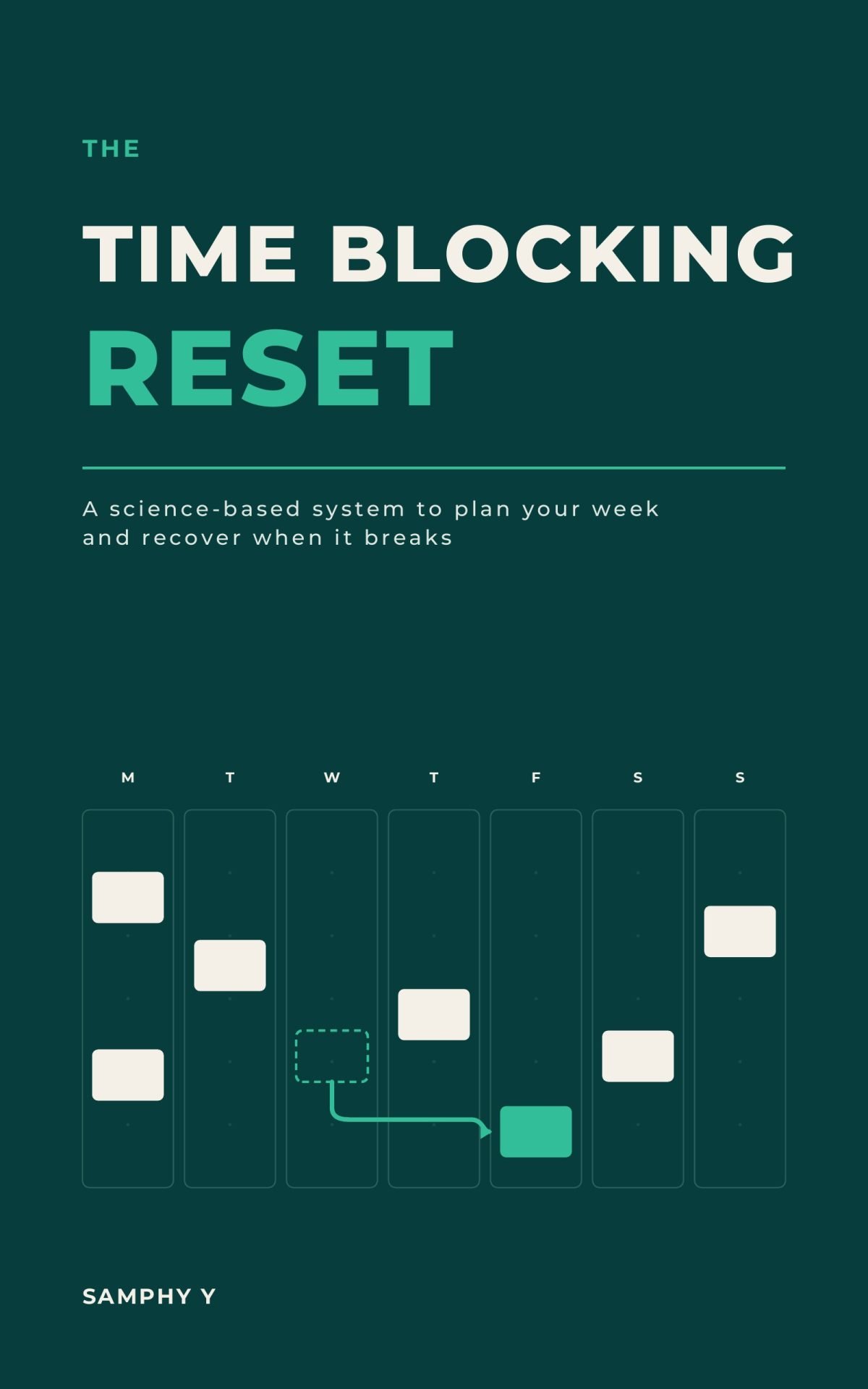
Prefer mapping out your day on paper or tablet before locking blocks into Microsoft 365? Download our 10 free printable time blocking templates, pair your calendar with our 30-Minute Weekly Review Checklist, or follow the full 7-Day Time Blocking Reset inside the Better Work hub.