Most of the professionals I work with are already using AI. They’ve tried ChatGPT. They’ve seen a Copilot demo. Someone in their team is experimenting with Notion AI or some niche plugin they found on LinkedIn.
But when I ask a simple question: “Where, exactly, in your week does AI reliably save you time?”
I usually get a long pause.
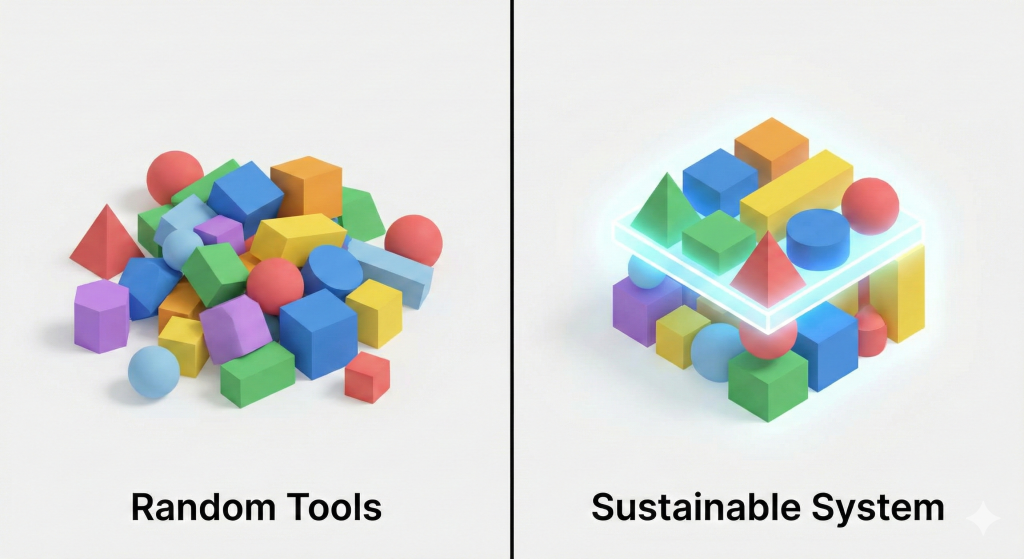
The reality is: most knowledge workers are stuck in Random AI Tool Mode. They’re experimenting, but they’re not adopting. They have tools, but they don’t have a system.
This article is about closing that gap. I’ll walk you through what an AI productivity system looks like—especially if you’re a Microsoft 365 user—and how to design your own workflow over the next 30 days without chasing every new tool that appears on your feed.
Why Most Knowledge Workers Are Stuck in “Random AI Tool Mode”
Demos Everywhere, Systems Nowhere
You’ve probably watched someone turn messy notes into a polished email in 30 seconds, summarize a 20-page document, or generate an outline for a report.
Those demos are useful because they show you what’s possible. But they rarely answer the more important questions:
- Where does this fit in your current workflow?
- What do you stop doing because this exists?
- How do you make this reliable, not just impressive?
Without those answers, AI stays a novelty layer on top of your work, not a core part of how you operate.
Adoption vs. Experimentation
When I work with organizations on Microsoft 365 adoption, we draw a simple line:
- Experimentation: “We tried Teams; a few people like it.”
- Adoption: “Teams is where work happens. It’s part of our operating system.”
The same applies to AI.
- Experimentation: “I sometimes paste an email into ChatGPT when I’m stuck.”
- Adoption: “I have three specific workflows where AI always helps, and my default is to use them.”
Your goal is not to try more tools. Your goal is to design 2–5 repeatable workflows where AI reliably saves time and improves quality, and then make those workflows part of your daily routine.
| Feature | Random AI Tool Mode | Sustainable AI System |
| Tool Location | Browser tab (separate from work) | Embedded (Outlook, Word, Teams) |
| Data Privacy | High risk (copy-pasting) | Enterprise-grade (tenant boundary) |
| Primary Use | Novelty/Entertainment | Workflow Acceleration |
| Cost | Fragmented ($20 here, $20 there) | Bundled (e.g., Copilot for M365) |
| Learning Curve | High (new UI for every tool) | Low (familiar interface) |
What an AI-Productive Knowledge Worker Actually Looks Like
Before you design your own system, it helps to know what “good” looks like.
1. Clear Work Surfaces and Sources of Truth
High-performing knowledge workers tend to have a small number of work surfaces where things happen (Email, Chat, Docs) and one or two sources of truth (SharePoint, Notion, etc.).
AI becomes productive when it is embedded into those surfaces, not when it lives in a separate tab you occasionally remember to open. If you’re a Microsoft 365 user, your AI system should live inside Outlook, Teams, and Word.
2. AI as an Accelerator, Not a Source of Truth
Especially in legal, finance, healthcare, and leadership roles, this is non-negotiable: AI should accelerate your work, not replace your judgment.
An AI-productive knowledge worker uses AI to draft, summarize, rephrase, and structure. They use human expertise to verify, decide, and approve. This implies:
- You avoid pasting highly confidential information into public tools.
- You always review AI-generated content before it reaches a client or stakeholder.
- You treat AI’s output as a “first draft” or a “second brain,” not an authority.
Core Principles for Safe, Sustainable AI Productivity
If you want an AI productivity system that survives more than a few weeks, you need a foundation.
Confidentiality Comes First
Before you worry about speed, ask: What kind of information do I handle?
- Don’t: Paste client names, identifiable details, and private contracts into public AI tools.
- Do: Prefer tools that are approved and governed by your organization (e.g., Copilot within Microsoft 365).
- The “Abstraction” Trick: Instead of asking AI to “Review this contract with [Client Name],” ask it to “Review this sample services contract and suggest clearer wording in the termination clause.”
Human Review Always
AI can generate confident nonsense. You remain responsible for what goes out under your name.
- Build review steps into your workflow.
- For every AI-assisted draft, ask: “Does this reflect what I actually believe?” and “Is this consistent with our policies?”
Primary Sources Win
AI is a powerful pattern matcher, but it is not a primary source. For serious work, you want AI to work on top of your existing documents. Use AI to pull out relevant sections or compare versions, but when there is a conflict between what the model suggests and what is written in your signed contract, the primary source wins. Always.
A Simple AI Productivity Stack for Microsoft 365 Users
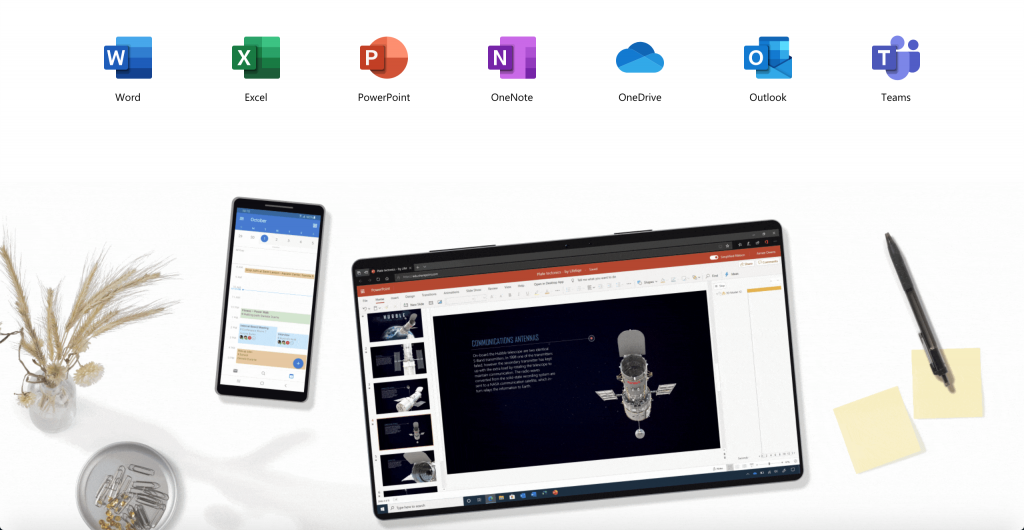
If you live in Microsoft 365, you already have an AI productivity system waiting to be activated. You don’t need ten more tools; you just need to connect the ones you have: Outlook, Teams, OneNote/Loop, SharePoint, and Copilot.
Here are four specific workflows to get you started.
Workflow 1: Email Triage and Response
Use AI in Outlook to stop staring at blank screens.
- Triage: Ask Copilot to summarize unread emails from today or identify high-priority messages from specific clients.
- Drafting: Use prompts like, “Summarize this email chain and draft a clear response that confirms our position and lists next steps.”
- Systematize: When you like a response, save the prompt structure.
Workflow 2: Meeting Prep and Follow-Up
Meetings are a massive drain on time.
- Before: “From our last three meetings with [Project Name], what were the key decisions and open actions?”
- After: Ask AI to generate a short summary email to attendees with action items, owners, and deadlines.
Workflow 3: Drafting Internal Documents
For memos, proposals, and SOPs, use AI as a structure engine.
- Prompt: “Create a one-page internal briefing for managers on [topic], including context, main risks, and recommended actions.”
- Refine: “Shorten this by 30% without losing important detail” or “Make this tone more suitable for a non-technical audience.”
Workflow 4: Summarizing Long Threads and Documents
This is where AI shines as an orientation layer.
- The Prompt: “From this document, what are the 5 key obligations we have as a supplier?” or “Summarize this thread for a busy executive who has not followed the conversation.”
- The Guardrail: Use the summary to orient yourself, but click the citations. Never rely solely on the summary for high-stakes decisions. The summary tells you where to look in the document, saving you the time of reading the irrelevant parts, but you must still read the relevant clause yourself.
Your 30-Day Blueprint: From Random to System
You don’t need to implement all of this overnight. Here is a realistic 30-day plan to build a sustainable AI habit.
Week 1: The Audit
Don’t use AI yet. Just watch your week.
- Identify the 3 repetitive tasks that bore you the most (e.g., “Summarizing weekly updates,” “Drafting client replies,” “Searching for file versions”).
- Write them down. These are your targets.
Week 2: The Pilot
Pick one workflow from the list above.
- Commit to using AI for that specific task every single time you do it this week.
- If it fails, tweak the prompt. Don’t give up; refine the instruction.
Week 3: The Prompt Library
By now, you know what works for that one task.
- Save your best prompts in OneNote or a dedicated “AI Cheat Sheet” file.
- Share this cheat sheet with your team. Standardization creates speed.
For teams that want to turn shared AI practices into practical, role-based capabilities, see my guide to building an AI training program employees will actually use.
Week 4: Expansion
Add a second workflow.
- Now that your first workflow is a habit (e.g., meeting summaries), tackle the next one (e.g., email drafting).
- Review your system: Are you saving time? Is the quality holding up?
The Bottom Line
The future of work isn’t about who has the best AI tool; it’s about who has the best process for using it.
Stop treating AI like a magic trick and start treating it like a junior analyst. Give it clear instructions, review its work, and integrate it into the tools you already use. That is how you move from “random tool mode” to a sustainable, high-performance workflow.
Frequently Asked Questions about AI Productivity
What is an AI productivity system?
An AI productivity system is a deliberate workflow where artificial intelligence tools are integrated into your daily tasks—like email triage, meeting notes, and document drafting—rather than used as ad-hoc novelties.
Is Microsoft Copilot better than ChatGPT for productivity?
For knowledge workers in the Microsoft ecosystem, Copilot is often superior because it has access to your “Graph” (emails, chats, and files), whereas ChatGPT is isolated from your work data.
How do I build an AI workflow?
Start by auditing your week to find repetitive text-based tasks. Choose one tool (like Outlook Copilot) to handle the first draft of those tasks, and mandate a human review step before sending.