
To time block in Google Calendar, reserve a specific start and finish time for the work you intend to do. Give the block a concrete outcome, fit it around existing commitments, and leave space for interruptions.
Quick start: block your first task
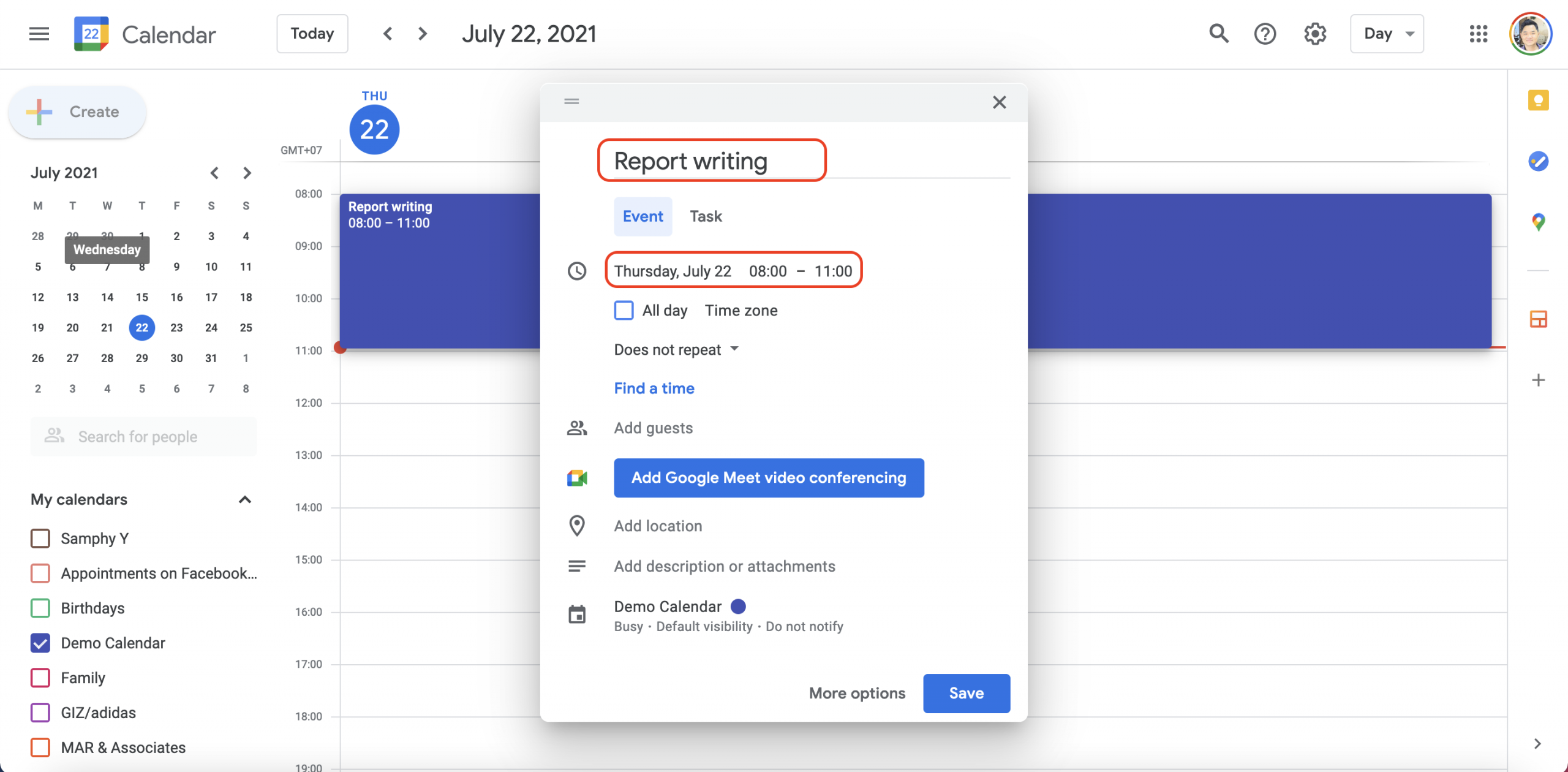
Open Google Calendar on your computer and switch to Week view. Select an available time and create an event. Give it a concrete outcome, such as “Draft the report introduction,” and set a realistic start and end time. Check the availability setting: choose Busy when you want the period to count as unavailable. Save the event, leaving room around it for breaks and overruns.
Start with one useful work block, then add lunch and a short planning session. A calendar block gives work a place in your day; it does not guarantee that the task will finish on time or prevent every interruption.
The instructions below focus on Google Calendar on desktop. Mobile layouts and the options available to personal, work and school accounts can differ.
The original screenshots are retained as illustrations. Google has updated its interface since they were captured, so use the written instructions for current feature differences.
Time Blocking Basics
Time blocking is a time management method. As the name suggests, the technique asks that you schedule your day in blocks with specific start and finish times. The time block duration varies depending on factors such as the task nature, the time you have, and deadlines. For example, painting, writing, coding, and most other domains of expertise require long uninterrupted time blocks. Similarly, if you have to submit a report today, it may be good to block the whole day for the task.
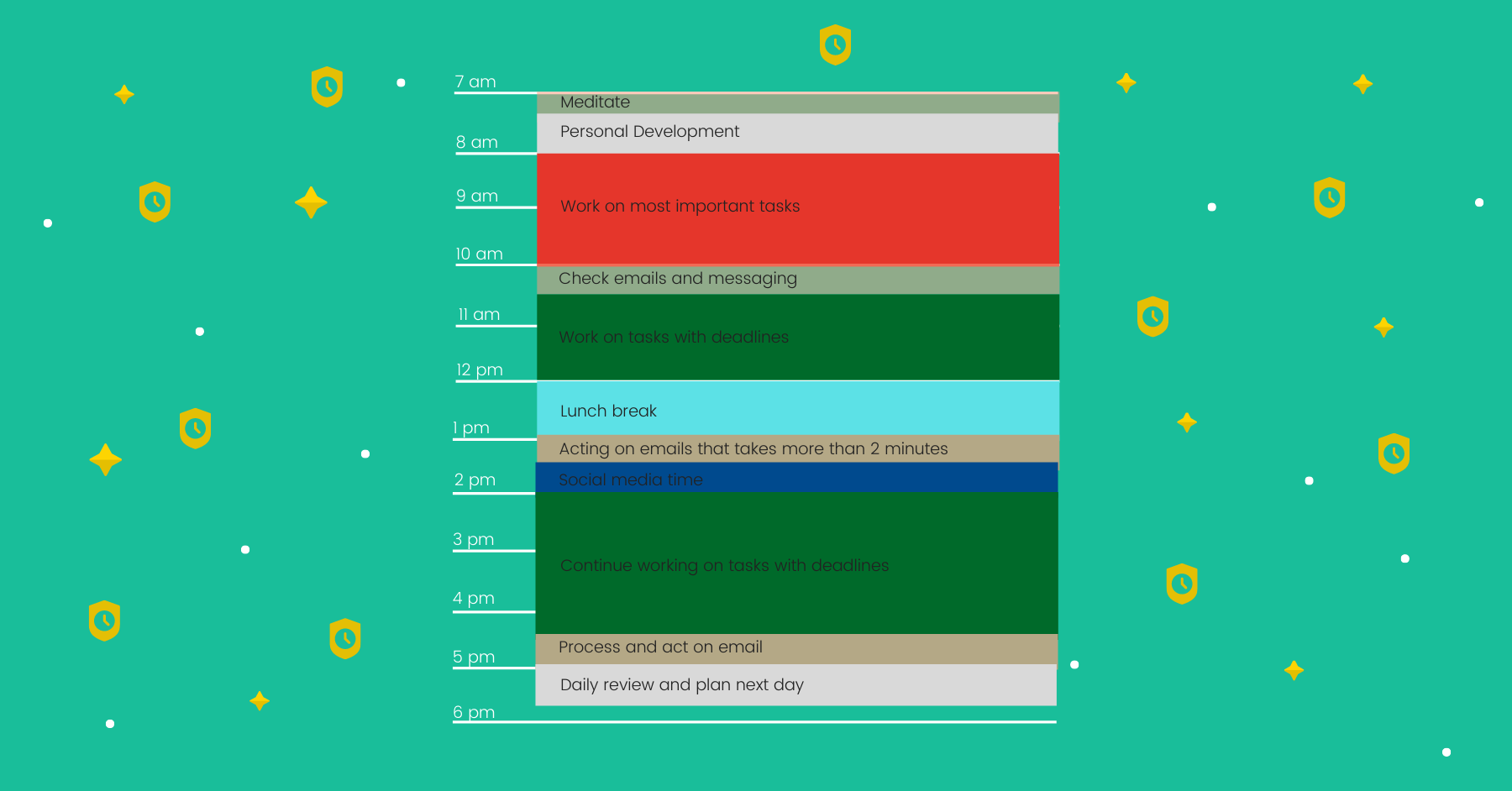
Two books that have made the time blocking method popular are Cal Newport's Deep Work and The ONE Thing by Gary Keller and Jay Papason. The tech mogul Elon Musk might also use the technique to manage his time for all the companies he owns. Nir, the author of Indistractable, recommends the time blocking method too.[1]Eyal, N. (2021, July 12). Timeboxing: The Most Powerful Time Management Technique You’re Probably Not Using. Nir and Far.
To learn more about the basics of the time blocking method, I recommend that you read my other time blocking guide, Time Blocking Method: Pros and Cons.
Now, follow these principles and adjust the time blocking method to work for you.
Each time block must have a specific start and finish time.
It is vitally important to emphasize this. Each time block must have a specific start and finish time. And, you have to be accountable to your schedules the way you are to meetings and appointments. Of course, there are days you cannot stick with your plans, but for the method to work, you must improve your time management skill. It is not easy, but with deliberate practice day after day, you will get better.
Time blocking is a skill.
It requires lots of practice. That is probably why so many people give up on this time management method too soon before they can reap the long-term benefits. After finding it difficult to stick with their time blocking schedule, they believe that the technique would not work for them and quit. Or, they may be too busy to plan, and time blocking planning takes too much time.
Like other skills, you must learn and practice the technique. Furthermore, deliberate practice is crucial if you want to attain expertise in the time blocking method.
If your plan keeps breaking, reduce the number of blocks and shorten your first focused session. Track what interrupted you and adjust tomorrow’s plan. Practice should make the schedule more realistic, not turn it into another source of pressure.
Time blocking is not a to-do list.
Time blocking is a very results-oriented way of viewing and using time. It’s a way of making sure that what has to be done gets done… Time blocking harnesses your energy and centers it on your most important work. It’s productivity’s greatest power tool. —Keller, Gary. The One Thing: The Surprisingly Simple Truth Behind Extraordinary Results
When I first started time blocking, I wanted to use my to-do list for time blocking. My thinking was that using two tools for task management would be a hassle. But, what I found out was that time blocking is a time management method. It only forms part of the holistic productivity system where you keep and process all your tasks and stuff, giving you space for focus necessary to perform at your best. That is where time blocking falls short.
So, I recommend you use both the time blocking method and a to-do list for optimal productivity.
Three Things to Block Your Time for Every Day
Planning, rest and play, and exercise and mindfulness are three vital elements to prioritize in your daily schedule. These activities ensure that you can fully engage with each day and maintain a healthy balance in your life.
Time-block your planning
It is crucial to time block planning. Scheduling your day using the time blocking method is time-consuming because it forces you to consider what to do and when to start and be done with it. Some even think about where to perform the task.
The ONE Thing recommends time blocking 30 minutes for planning. But, it could be more or less depending on several factors such as your planning speed and skill and the number of tasks you have to prioritize. For example, if you are skillful in planning, it will take you less time to plan than those who have first started planning their day. Similarly, there are days when it is challenging to prioritize due to deadlines or equal importance of the tasks at hand, so you will likely spend more time planning than usual, too.
Time block rest and play
Together with a functional to-do list system, time blocking could make it effortless for you to focus intensely and perform at your best. However, our energy is finite. A research study found that if you have already worked intensely for 4-5 hours, the chances are that you have already depleted your energy for focused concentration.[2]ricsson, K. A., Krampe, R. T., & Tesch-Römer, C. (1993). The role of deliberate practice in the acquisition of expert performance. Psychological Review, 100(3), 363.
In their best-selling book, The Power of Full Engagement, Jim Loehr and Tony Schwartz recommend taking a break every 90-120 minutes. So, never underestimate the power of rest and recovery. It is crucial to time block rest, play, and other creative activities.
Time block exercise and mindfulness
The Power of Full Engagement suggests that to maintain your energy level, you must balance the four energy sources: physical, emotional, mental, and spiritual. In addition to rest and play, exercise and mindfulness cut across all dimensions.
You can time block an hour after work for this. Or, if your family is a priority after work, you can use physical activities as a form of rest and play. Consider taking a walk when you take your next 15-minute break during your work hours. Then, alternate it with a breathing exercise or meditation. Also, you mix the three of them in one. Rest in the form of walking while doing a breathing exercise. How about a mindful walk? That is rest, exercise, and mindfulness in a single time block.
Don't beat yourself up.
Remember how I introduced the time blocking method as a skill that requires consistent practice? My intention was to manage your expectation of the time needed to make this time management technique work for you. If you have ever mastered a skill, you should know how much time it took. So, be patient!
Most importantly, do not beat yourself up when you falter. Instead, step back, reflect and learn. The bestselling book on learning, Make It Stick, recommends these are four reflection question questions you can use for more fruitful learning from your experiences: [3]Brown, Peter C.. Make It Stick (pp. 88-89). Harvard University Press. Kindle Edition.
- What went well?
- What could have gone better?
- What other knowledge or experiences does it remind you of?
- What might you need to learn for better mastery, or what strategies might you use the next time to get better results?
Use these questions to adjust your next attempt. Self-criticism is not a substitute for learning what your schedule needs.
So with the time blocking basics in mind, let's now explore the mechanics of the Google Calendar.
The Mechanics of Google Calendar
Google Calendar, one of the best iPhone productivity tools, is one of the most popular calendars out there. It is available on all mobile operating systems such as iOS and Android. When you are on your computer, the web version always comes in handy at calendar.google.com.
Choose the right kind of block: use an Event for work sessions, lunch or recurring commitments; a Task for an item you want to schedule and mark complete; or Focus time for additional concentration controls when your account supports it.
- It allows you to decide when to start and finish the task.
- The calendar lets you visualize your day, so it makes it easier to prioritize.
- Accessibility and ease of use are another reason. It is available on all mobile OS's. You can either access the web version of it or add it to the built-in calendar app on a computer.
Google introduced native task time blocking in 2025. The dedicated Focus time event is a separate feature for eligible work or school accounts. If Focus time is unavailable, an ordinary event is enough to reserve a work session.
Valuable features for the time blocking method
Time blocking in Google Calendar is a breeze. The basic features include the following:
- Creating events such as meetings and appointments
- Setting the location
- Adding description
- Attaching reference files to events
- Using event and calendar colors to distinguish work categories
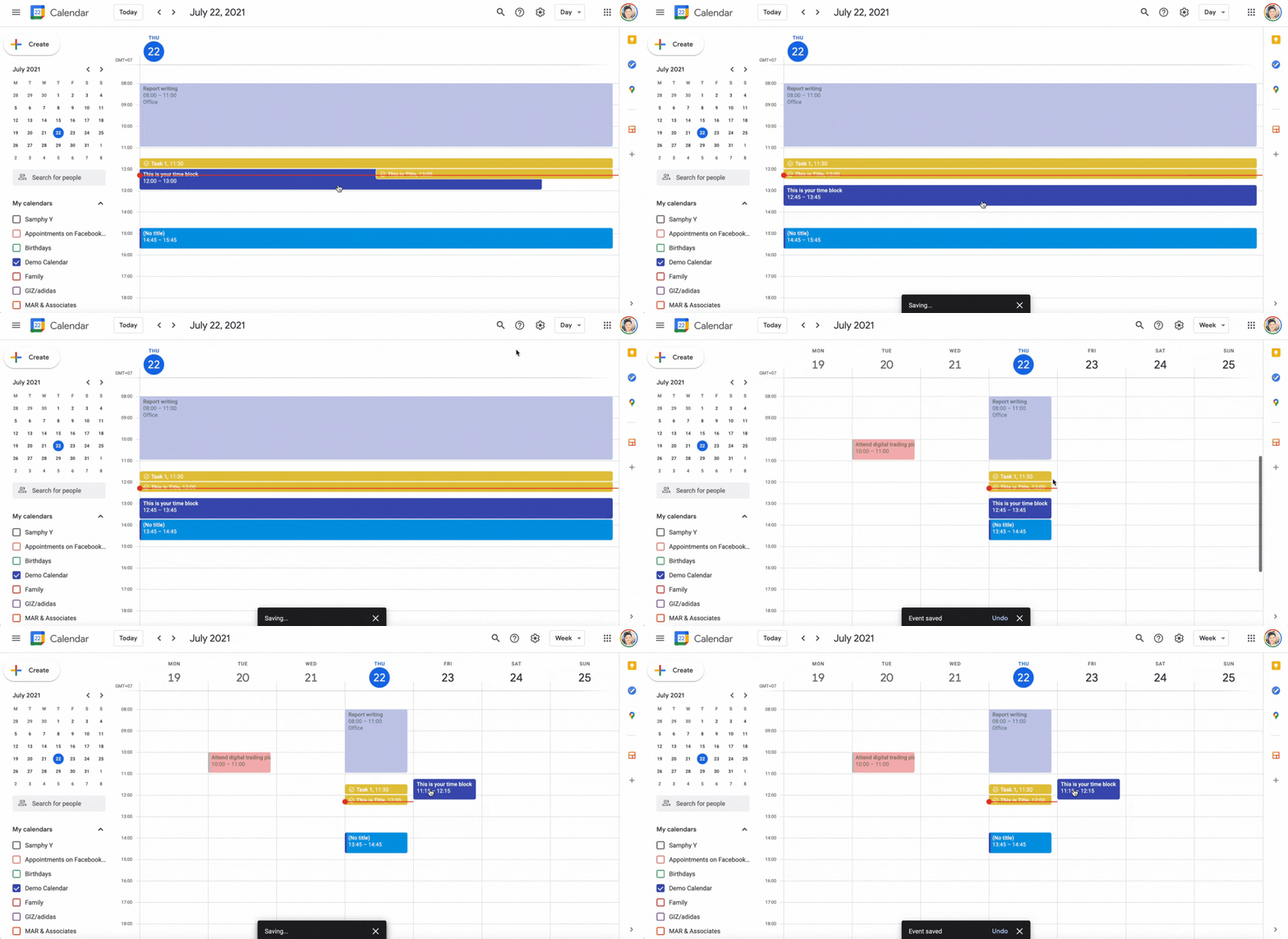
Search helps you find past and future commitments. Drag-and-drop makes it easier to move a block when your plan changes. Review the resulting start and finish times after moving it.
Let's explore these features one by one.
Create a work block with an event
Creating an event is straightforward.
- In Calendar, choose one of these options: 1- Click an empty time slot in the calendar grid, and 2- Click "+ Create"
- Add an event title, date, and time.
For example, create “Draft report introduction” from 9:15 to 10:15 a.m. Check that the event is marked Busy if you want this time treated as unavailable, then save. A Busy event signals availability; it does not automatically decline incoming invitations.
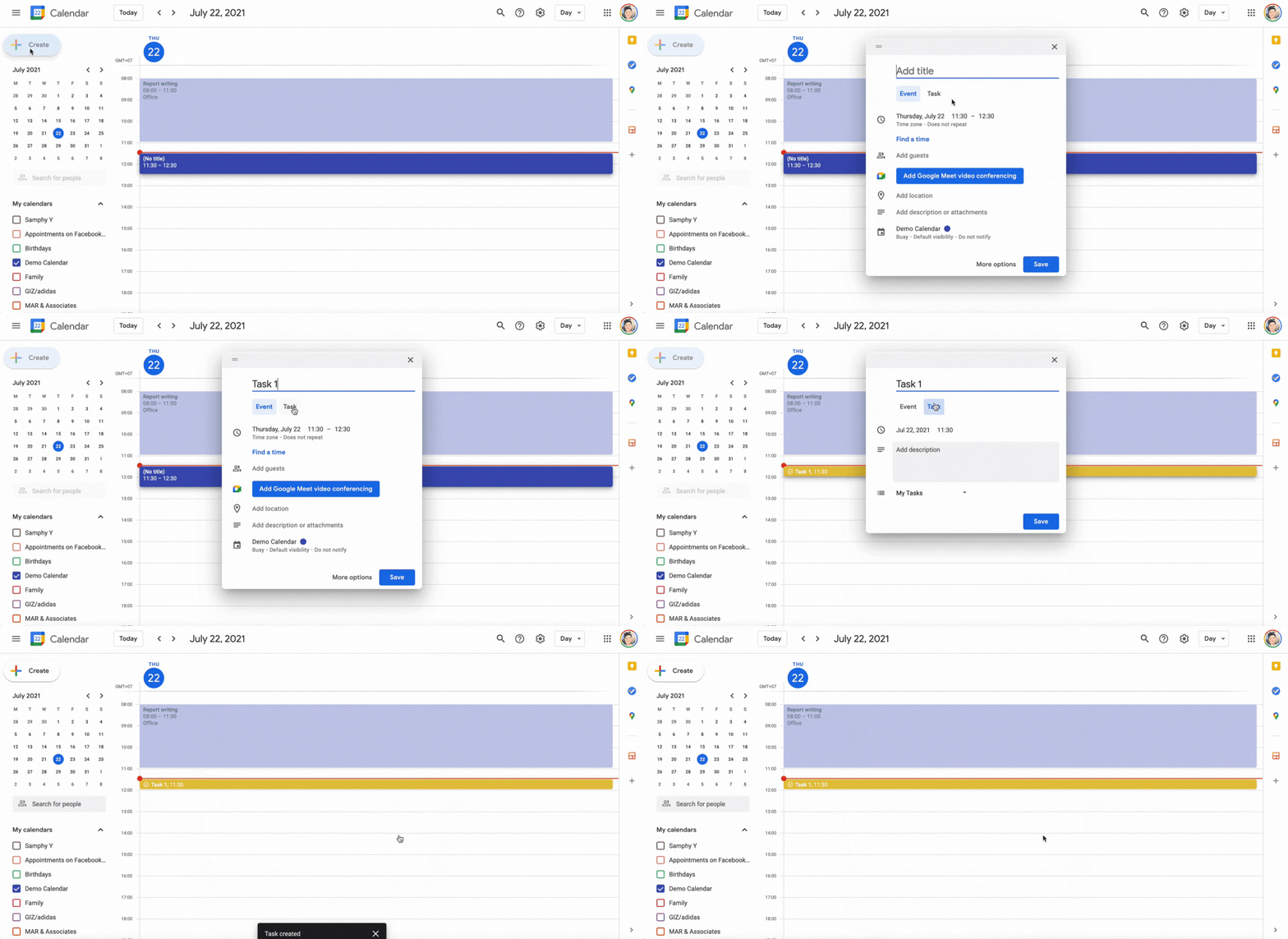
Reserve time for a task: select an empty calendar slot and choose Task. Enter a concrete outcome, set the work period and review the options in your editor before saving. The item remains a task you can mark complete.
- In Calendar, choose one of these options: 1- Click an empty time slot in the calendar grid, and 2- Click "+ Create"
- Choose Task in the creation window. If the scheduling controls are unavailable in your interface, use an event to reserve the work period and keep the task in your task list.
Setting Location
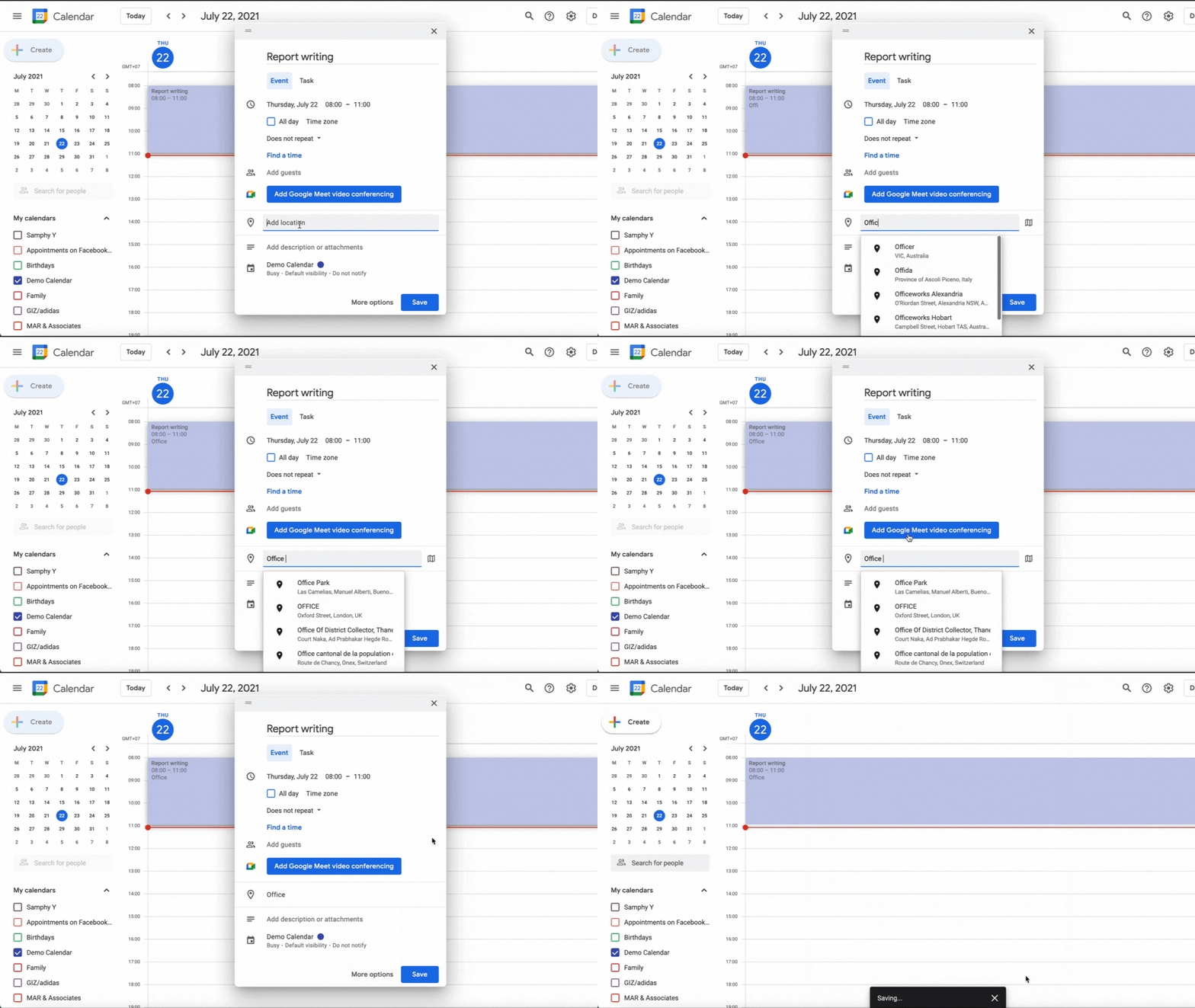
For an event, add a location when it helps you prepare for the work—for example, a meeting room or library. Do not assume the Task editor has the same fields as the Event editor.
In the event editor, select Add location and enter the place.
Add description
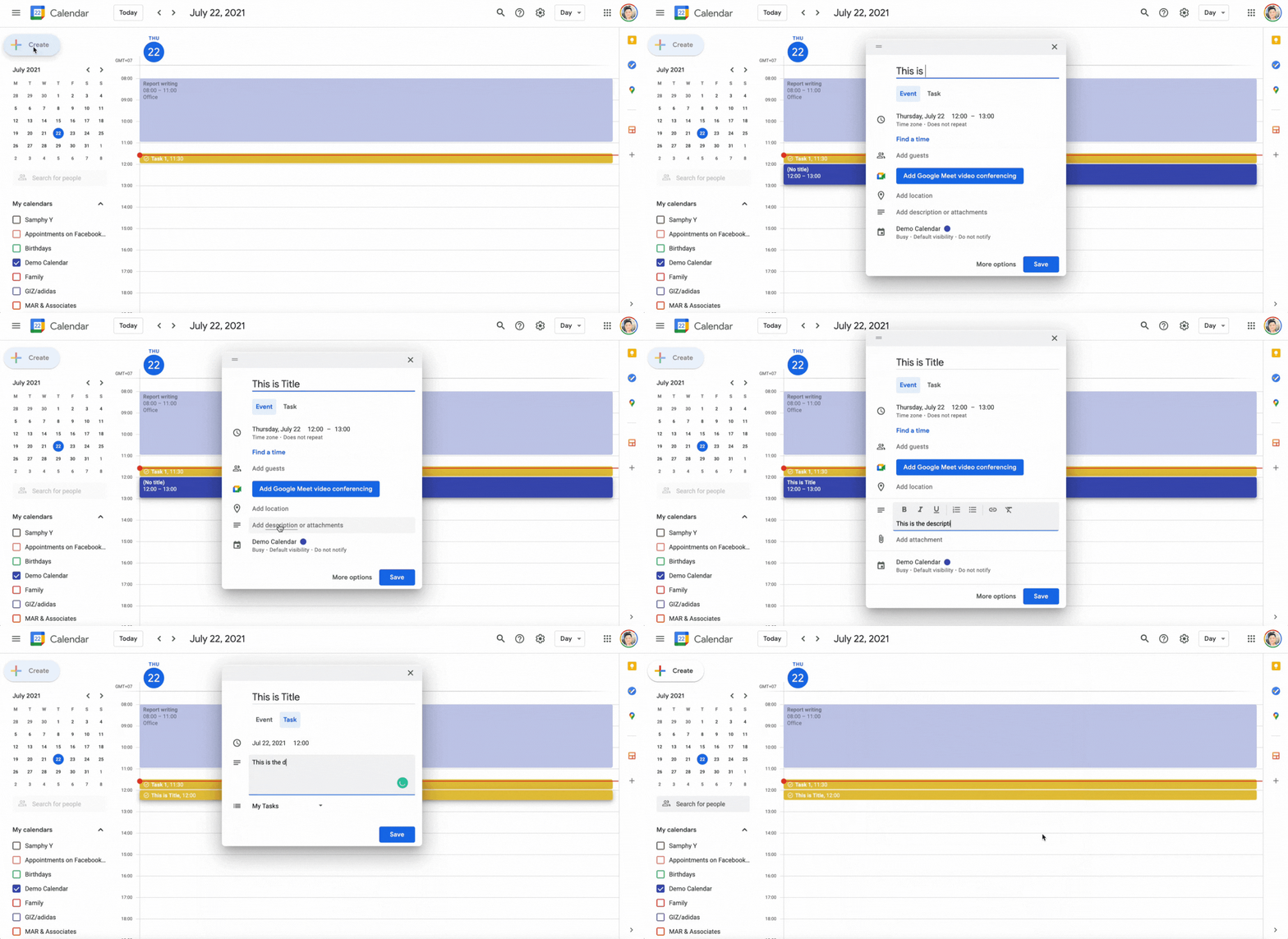
Use the description to record the next action, reference links and what “finished” means. This reduces the work needed to restart after an interruption.
Description of an event or task is beneficial under these circumstances:
- You need to clarify your task to make it easy to implement.
- There are things you need to remember when working on the task.
In an event, use Add description. For a task, enter supporting details in the description field available in its editor. Field labels and layouts can differ between versions.
Adding attachments
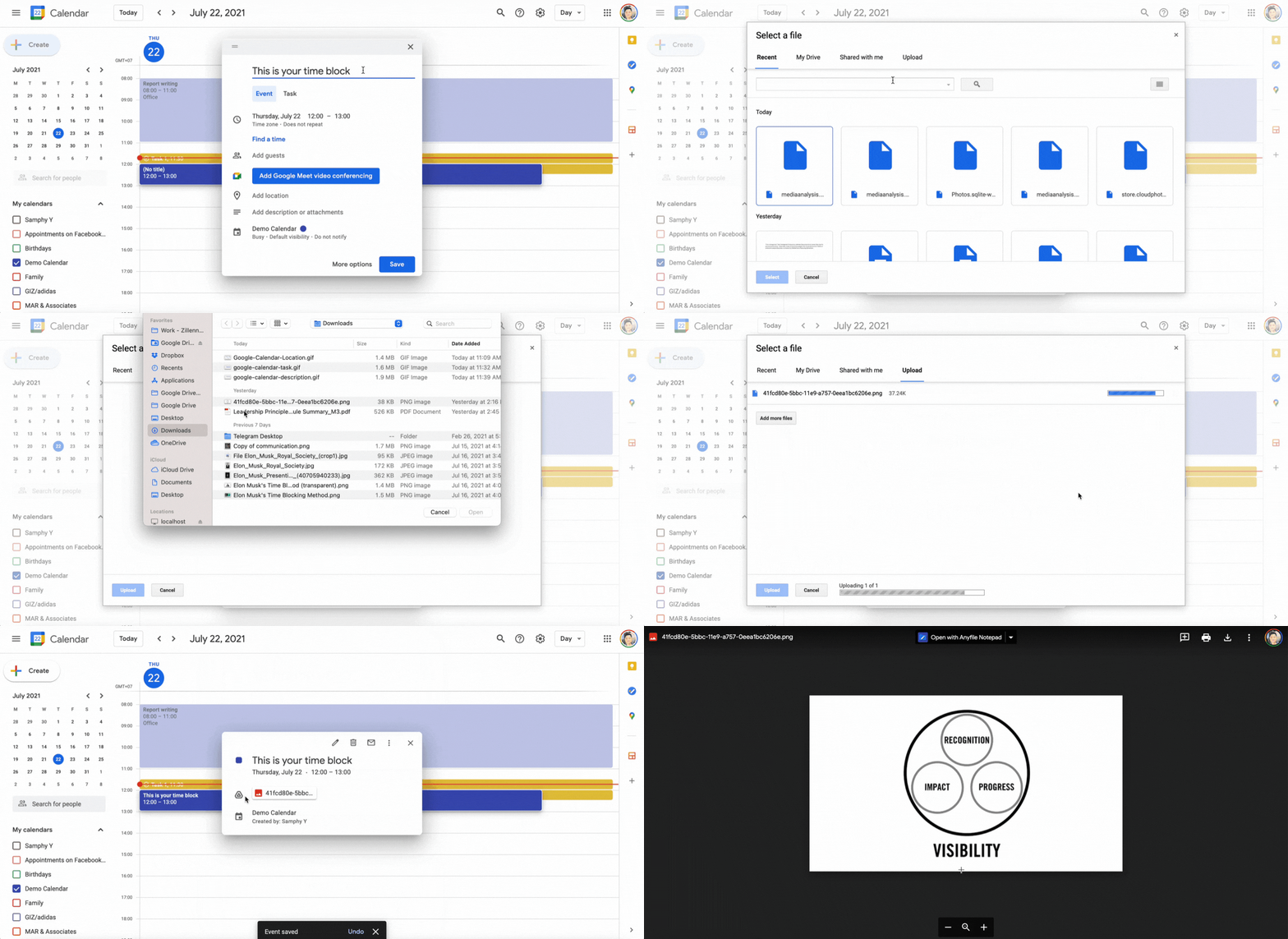
Some tasks require a reference document to which you need to refer. Google Calendar lets you do that too. However, this feature is available only for events, not for tasks.
To add an attachment, create an event and click on Add attachment.
You also have the option to attach a file from your Google Drive or upload it from your computer.
Use colors to distinguish events
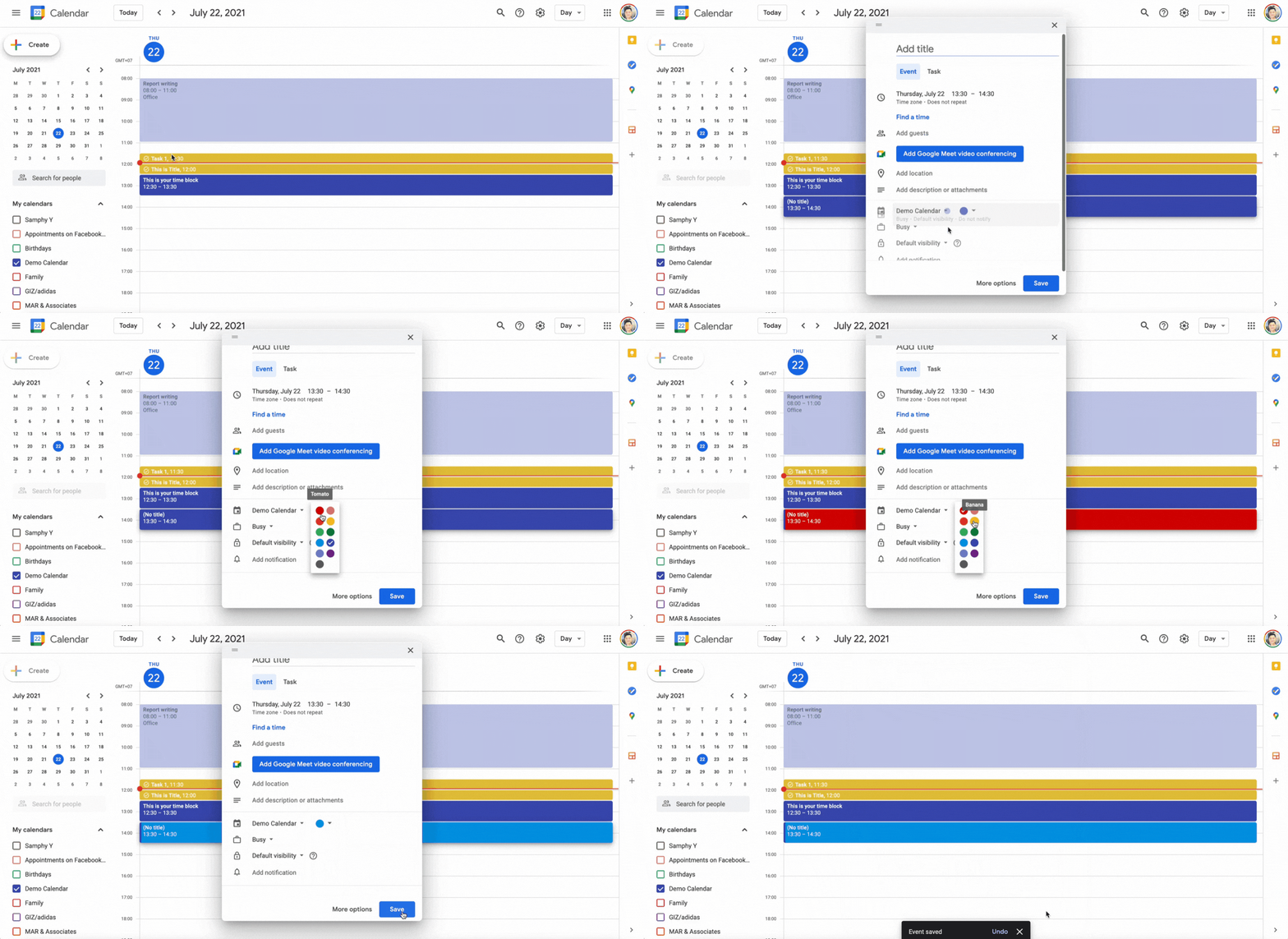
Use a small number of colors for categories such as focused work, meetings and personal commitments. The color should help you read the day at a glance; it should not replace a clear title or realistic timing.
For an event, use its color selector to choose a color. Calendar-level colors can also help distinguish categories.
Do not assume individual tasks have the same color controls as events. Use the options available for Tasks in your calendar, and keep the system simple.
Google Calendar Search
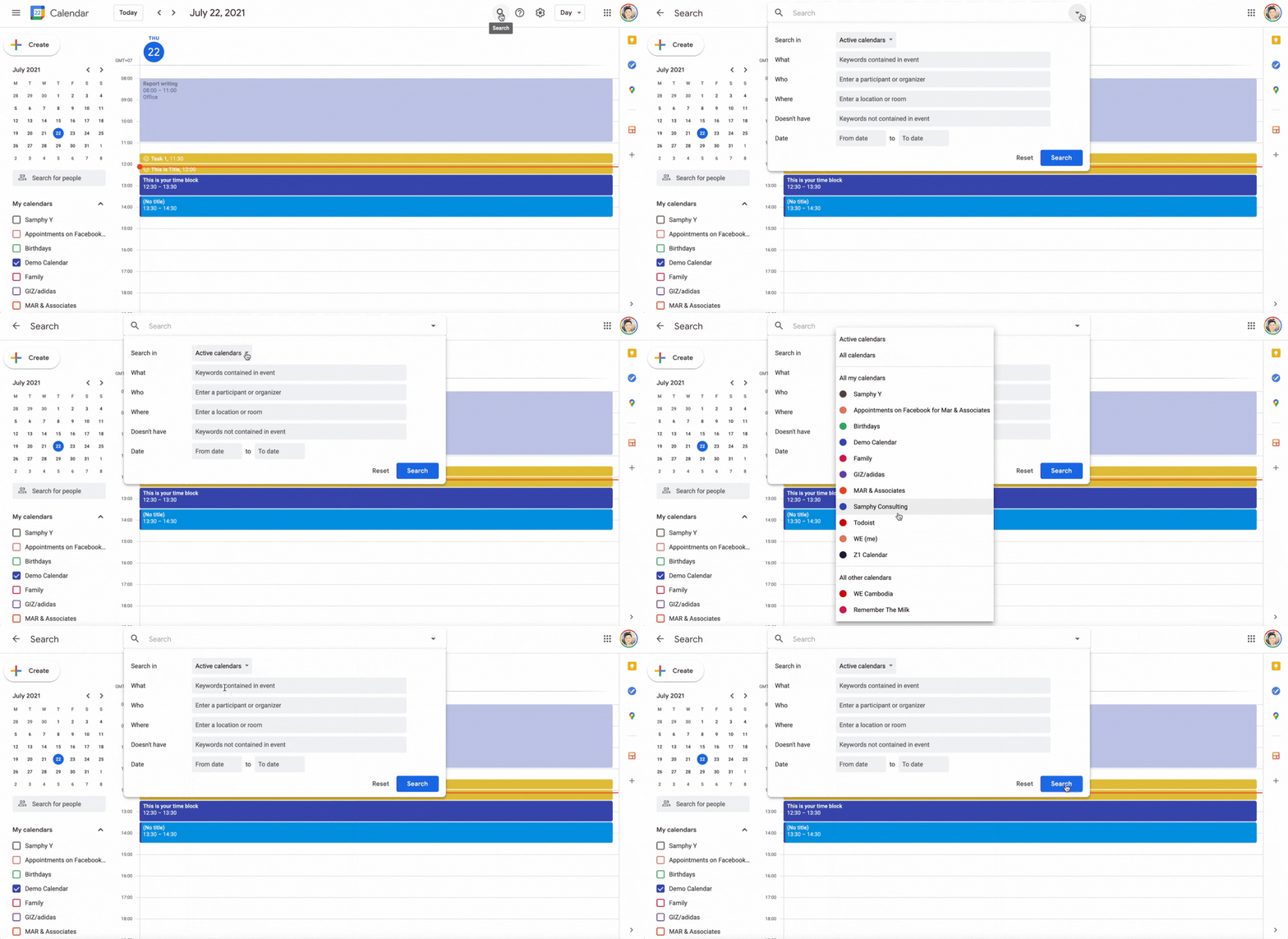
Search is what Google does best. If you love Google search engines, you will love the same functionality that Google Calendar offers.
You can search in a specific calendar or all calendars you have. Keywords, people, location, and dates are other search functionalities that make the Google Calendar stand out.
Drag-and-drop feature of Google Calendar
When work runs over, move the remaining work to a realistic slot and check the new duration. For an event, you can drag it to another time on the desktop calendar. For a task, use its scheduling controls if dragging does not offer the adjustment you need. Decide what to shorten, move or stop instead of silently extending the whole day.
Further reading: Google Calendar Training and Help
How to block lunch in Google Calendar
Create a Lunch event with the start and finish times you actually intend to use—for example, 12:00–12:45 p.m. Choose a recurrence that matches your workdays, check that availability is Busy if you want the time treated as unavailable, and save.
Change an individual occurrence when that day’s commitments differ. An ordinary Busy event signals that you are unavailable; automatic meeting declines require a feature that provides that control, such as Focus time or Out of office on eligible accounts.
Build a realistic day with buffer time
Example: a workday with room to adjust
Use this as an illustration, then adapt the timing to your commitments and energy. Leave some time unassigned so that one delay does not push every block later.
Morning: protect one useful outcome
Start with one priority and fixed commitments, then leave space between them:
- 9:00–9:15: choose one priority and check your commitments.
- 9:15–10:15: draft the report introduction. 10:15–10:30: buffer or a break.
- 10:30–11:00: meeting. 11:00–11:30: record decisions and next actions. 11:30–12:00: leave open capacity.
12:00–12:45: lunch. Keep the break visible, just as you would a meeting.
Afternoon: finish, adapt and review
12:45–1:30: essential messages and administration. 1:30–2:30: revise the report. 2:30–3:00: buffer for emerging work. 3:00–3:45: the next useful task. 3:45–4:00: review and choose tomorrow’s starting point.
If a meeting runs over, use open capacity or reschedule lower-priority work. At the end of the day, record what you finished and leave a clear next step for unfinished work.
There is no requirement to begin with four hours of focused work. Start with a session you can realistically protect, then adjust its length using what you learn.
Start with a work session you can protect on an ordinary day. Review what actually happened, then make tomorrow’s plan easier to follow.
If your schedule keeps breaking, try the free 7-Day Time Blocking Reset.
FAQ
The following are a few of the frequently asked questions about time blocking with Google Calendar.
Yes. You can reserve work periods with calendar events, and Google also supports blocking time for tasks. The separate Focus time feature adds concentration controls for eligible work or school accounts. An ordinary event is enough to start.
Create an event at the intended time, name the work, set its duration and check its availability setting. Save it, then review whether the block fits around your other commitments. Leave space for preparation and overruns.
Focus time requires an eligible work or school account. On desktop, use Day or Week view and a timed event to create it. If the option is unavailable, reserve the work session with an ordinary event.
Use Out of office when your account provides it and you want its meeting-handling options. Otherwise, create an event covering the absence and check that it is marked Busy. An all-day label alone does not guarantee the availability you intended. Repeat it only when the absence genuinely recurs.
The steps to time block any calendar are:
- Assess your workflow and identify tasks needing focus
- Determine appropriate time chunk sizes
- Add time blocks to calendar and color code them
- Schedule buffers and breaks between blocks
- Balance focus blocks with meetings and appointments
- Review regularly and tweak as needed
Using these time blocking best practices, you can transform tools like Google Calendar into an intentional, highly effective schedule.


You made a good point! Time blocking is a skill that needs time to acquire. Love other points you made about time blocking too.
Thank you. I’m glad you find this guide useful.