A time blocking template is most useful when your week refuses to stay exactly as planned.
That is why I wanted an editable version.
Instead of printing a schedule and starting over every time a meeting moves, a deadline changes, or Monday goes sideways, you can update the plan directly in Google Sheets or Excel and keep going.
I created this free weekly time blocking template for Google Sheets and Excel to help you plan the important work first, see where your time is going, and adjust the week without rebuilding the whole schedule.
You can use either version below.
Download the free template
Best if you want to work in your browser, access the planner from different devices, or keep your weekly plans in Google Drive.
Download the Excel Time Blocking Template
Best if you prefer Microsoft Excel, want a local copy, or already manage your work in Microsoft 365.
Both are free.
What is included in the time blocking template?
This is more than an empty Monday-to-Sunday calendar.
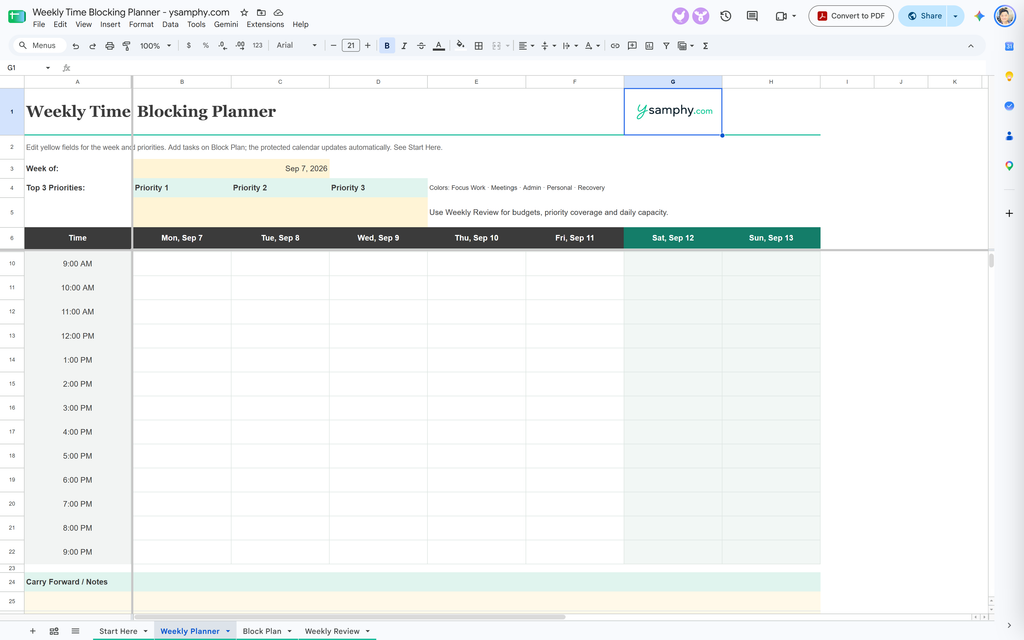
The template separates planning the week, entering individual time blocks, and reviewing whether the plan is realistic.
There are four main parts.
1. Start Here
The first tab gives you a short explanation of how the system works.
You do not need to learn a complicated productivity method before using it. The basic workflow is:
set the week → choose priorities → add time blocks → adjust → review
That is enough to get started.
2. Weekly Planner
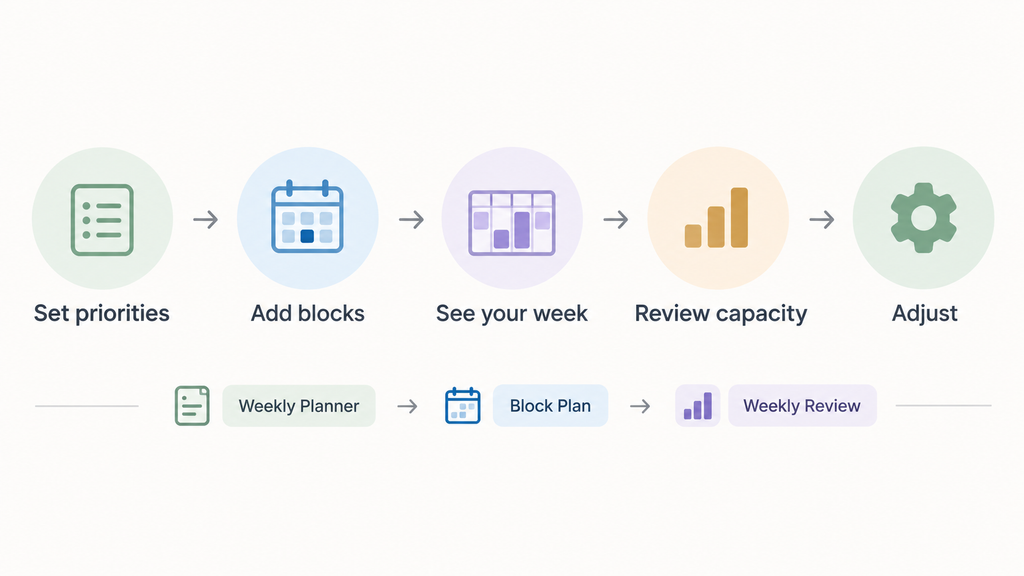
The Weekly Planner gives you a visual view of the entire week from Monday through Sunday, with hourly blocks from 6 AM to 9 PM.
At the top, you can define your:
- week
- top three priorities
- weekly schedule
The calendar then gives you one place to see how those priorities fit around meetings, administration, personal commitments, and recovery time.
I intentionally included weekends because time blocking is not only about squeezing more work into Monday through Friday. A useful weekly plan should show the whole life the work has to fit inside.
3. Block Plan
The Block Plan is where you enter the details behind the calendar.
For each time block, you can record:
- the task
- category
- priority
- status
The template uses practical categories such as:
- Focus Work
- Meetings
- Admin
- Personal
- Recovery
This makes it easier to see whether the week you planned actually reflects what matters to you.
You can also connect a block to one of your top three priorities and update its status as the week changes.
For example, a planned block might become Done, Moved, or Skipped.
That distinction matters.
A time blocking system should not pretend the original plan survived when it did not. The useful information is often in what changed.
4. Weekly Review
The Weekly Review gives you a simple way to compare your plan with your available capacity.
You can set target hours for different categories, define a daily work limit, and leave buffer time rather than scheduling every available hour.
The review can help you notice things such as:
- too many planned work hours in one day
- priorities with no time assigned
- unfinished work that needs to carry forward
- how much of the planned week was actually completed
- whether focus work is being crowded out by meetings and admin
The goal is not to score yourself.
The goal is to make next week more realistic.
How to use the Google Sheets time blocking template
You can make this system as detailed or as simple as you want. I recommend starting with five steps.
Step 1: Choose the three outcomes that matter most
Before filling the calendar, write down your Top 3 Priorities.
Do not start by asking:
What do I need to do this week?
Start with:
What needs to be meaningfully further ahead by the end of this week?
That small distinction helps prevent your calendar from becoming a container for random tasks.
Step 2: Add fixed commitments first
Next, block the things that already have a time attached to them.
For example:
- meetings
- appointments
- classes
- school runs
- recurring commitments
- important personal obligations
These blocks define the constraints of the week.
Step 3: Protect time for your priorities
Now place focused work around those commitments.
If one of your priorities requires three hours of concentrated work, do not simply write it on a task list and hope three free hours appear.
Put the time somewhere.
That is the basic advantage of time blocking: important work has to compete for actual time, not just a position on a list.
Step 4: Leave capacity for the week to change
Do not fill every hour.
A calendar that assumes nothing unexpected will happen is already broken before the week begins.
Leave some buffer for work that runs long, urgent requests, travel, transitions, interruptions, and recovery.
That empty space is not wasted productivity.
It is part of the system.
Step 5: Update the plan instead of abandoning it
When something changes, change the block.
Move it. Skip it. Carry it forward. Replace it.
This is the part of time blocking that matters most to me.
The purpose of a weekly plan is not to predict the future perfectly. It is to give you a structure you can return to after the week breaks.
Google Sheets vs Excel: which template should you use?
The actual planning method is the same. Choose the format that best fits how you already work.
| Choose Google Sheets if… | Choose Excel if… |
|---|---|
| You work mainly in your browser | You work mainly in Microsoft Office |
| You want easy access across devices | You prefer a local spreadsheet file |
| You already use Google Drive | You already use OneDrive or Microsoft 365 |
| You want to duplicate a fresh copy quickly | You want direct control over the .xlsx file |
| You may collaborate with someone | You mainly plan independently |
You do not need both.
The better template is simply the one you will actually open next week.
Common Questions About Using the Template
Do I need a Google account to use the Google Sheets template?
You will need a Google account to make and save your own editable copy in Google Drive.
Click Make a Copy in Google Sheets, sign in if necessary, and Google will create a separate copy in your Drive. Your changes will not affect the original template.
If you do not use Google Sheets, download the Excel version instead.
Why are some cells protected?
Some parts of the template contain calculations or automatically generated information, so they are protected to reduce the chance of accidentally breaking the planner.
The fields intended for normal input are visually marked. Use those areas for your week, priorities, tasks, categories, status, targets, and notes.
If you are comfortable modifying spreadsheets, you can customize the underlying structure in your own copy, but I recommend keeping the original formulas intact until you have used the planner for a while.
Can I reuse the template every week?
Yes. The easiest approach is to save a fresh copy for each week.
At the end of the week, keep the completed file as your record. Then duplicate it, change the week and priorities, clear the previous task entries, and start again.
This also gives you a simple archive of how your plans changed over time.
Can I use 30-minute time blocks instead of hourly blocks?
The current template is designed around one-hour blocks from 6 AM to 9 PM.
You can describe a shorter activity inside an hourly block, but changing the spreadsheet itself to 30-minute rows would require adjusting some of the calculations and structure.
If you routinely plan in 30-minute increments, I would treat that as a customization rather than changing the original template.
What does “Carry Forward” mean?
Carry Forward helps you identify work that was planned but still needs attention after the original block changes.
For example, if you move or skip a task, you can use the planner to keep track of it instead of letting it disappear from the week.
When rescheduling a task to another time slot, move its details to the new slot and clear the old entry so the same work is not counted twice.
Start planning your week
Choose whichever version fits your workflow:
Make a Copy of the Google Sheets Time Blocking Template
Get the Excel Time Blocking Template
If you are new to the method itself, start with my guide on how to time block your week. It walks through the planning process before you begin filling the template.
And if you prefer paper, you can browse my free printable time blocking templates instead.